Computer Networking > RESOURCE BOOKLET > CY 620 Malware_Capturing and Analyzing Network Traffic Using a Sniffer_CEH Exam Domain: Sniffing (All)
CY 620 Malware_Capturing and Analyzing Network Traffic Using a Sniffer_CEH Exam Domain: Sniffing
Document Content and Description Below
Last updated: 3 years ago
Preview 1 out of 27 pages
Instant download
Buy this Document to get the Full Access Instantly
Provided by Students Who Aced it
We Verify Document Content to Gurantee Accuracy
Reviews( 0 )
Document information
Connected school, study & course
About the document
Uploaded On
Apr 07, 2023
Number of pages
27
Written in
All

Additional information
This document has been written for:
Uploaded
Apr 07, 2023
Downloads
0
Views
224
Topic Tags
Recommended For You
Get more on RESOURCE BOOKLET »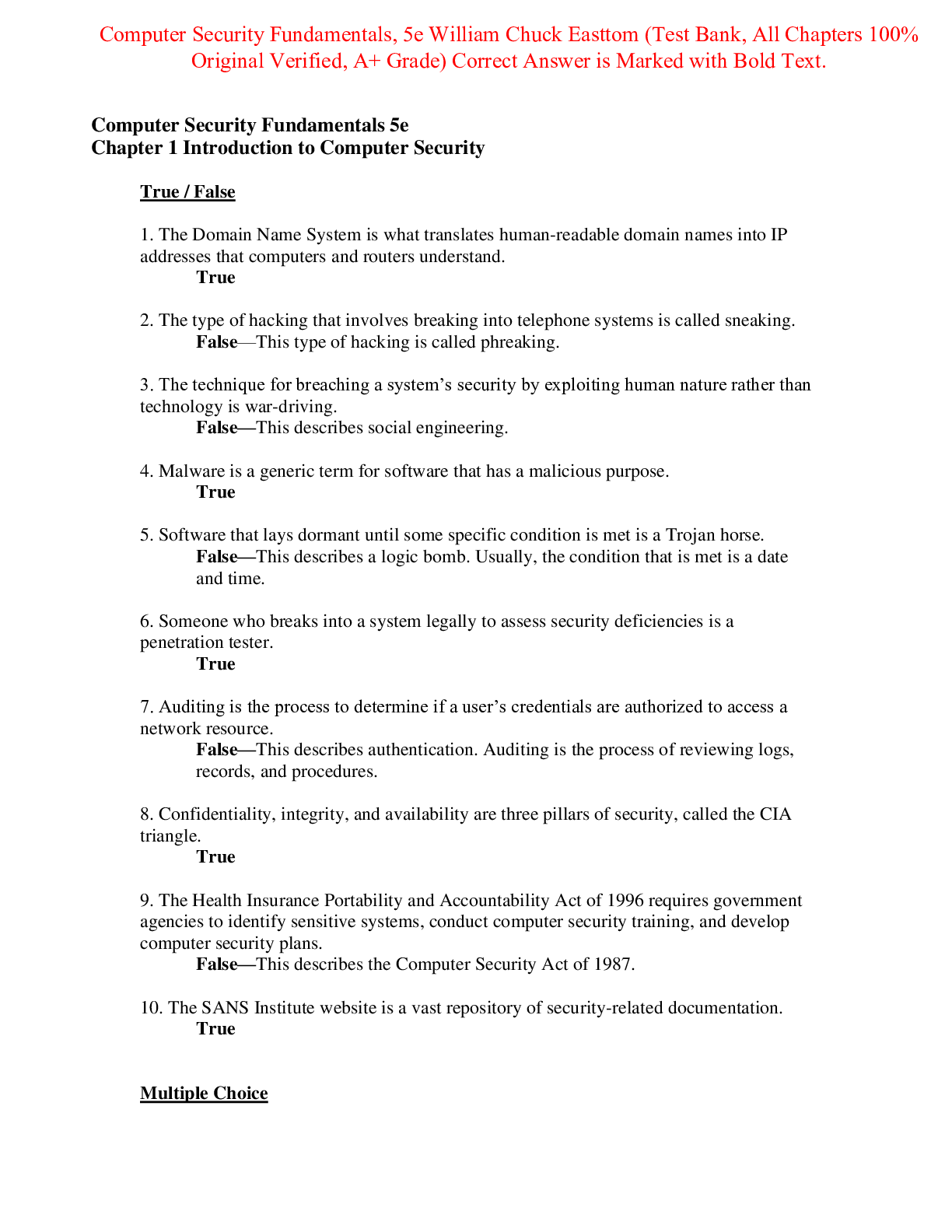
Test Bank for Computer Security Fundamentals 5th Edition By Wi...
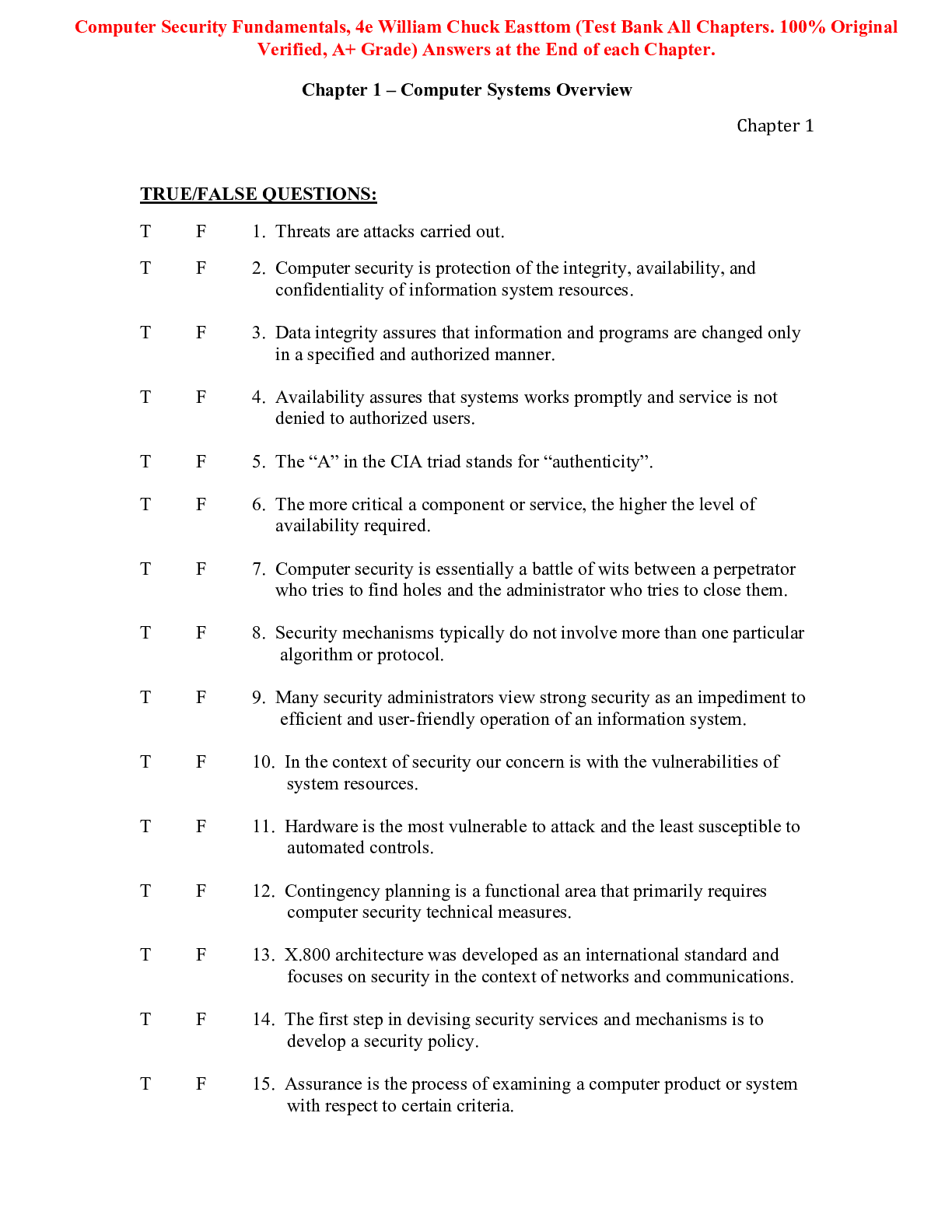
Test Bank for Computer Security Fundamentals 4th Edition By Wi...
 2022 test Bank.png)
AI-900 Microsoft Azure AI Fundamentals Certification exam test...

CSIS 330 Quiz 1 Liberty University answers complete solutions;...

MTA 98-366 Exam / MTA: IT Infrastructure, Network Infrastructu...

LIBERTY UNIVERSITY CSIS 340 Final Exam 1 QUESTIONS WITH ALL VE...

Business Data Networks and Security, 11e (Panko) Chapter 11 Ne...

ITN 277 Final Exam / Network Infrastructure & Security / 2025...
WGU D415 Software Defined Networking / SDN Certification Exam...
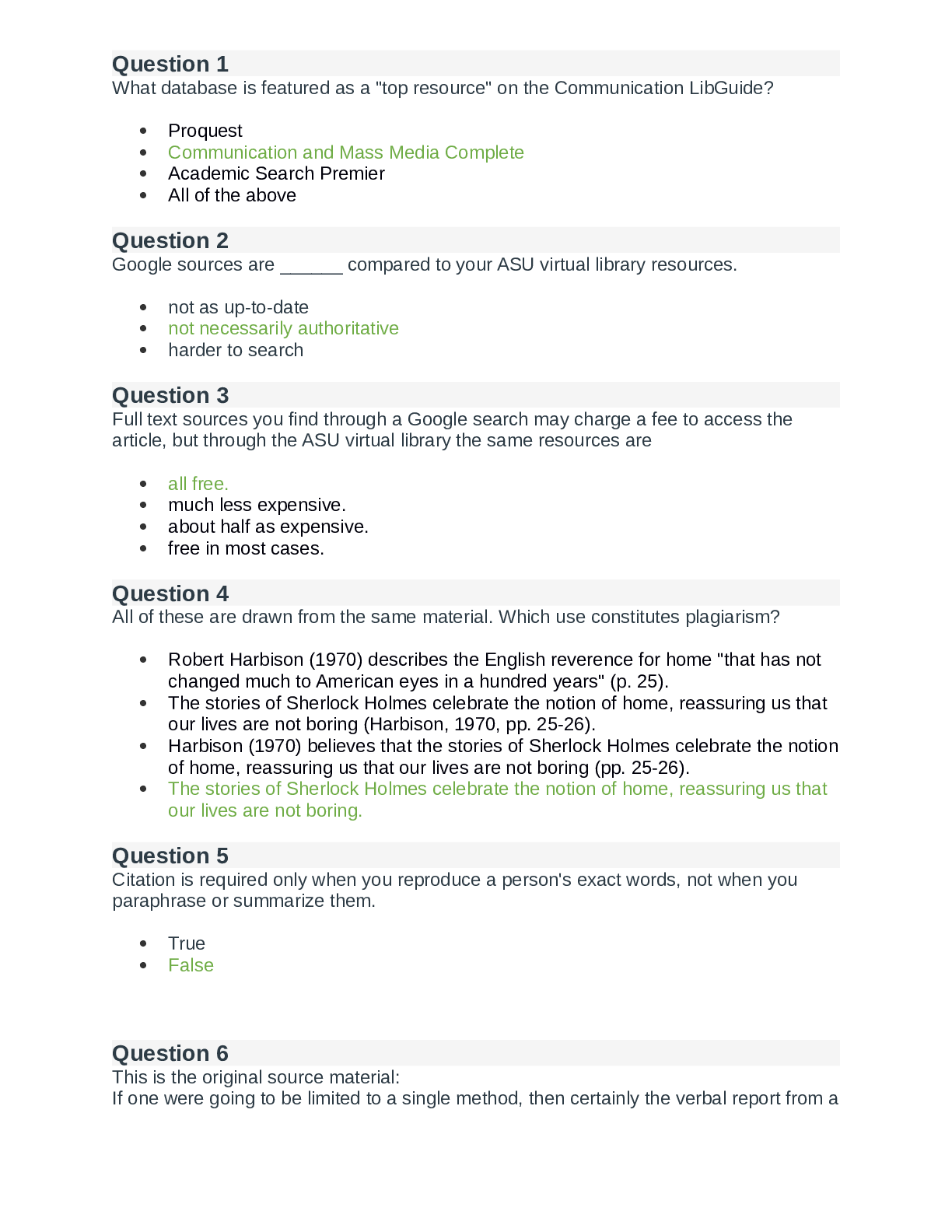
COM 207 | COM207 EXAM 2 STUDY GUIDE - ARIZONA STATE UNIVERSITY


TEST_BANK_FOR_NURSING_DELEGATION_AND_MANAGEMENT_OF_PATIENT_CAR...
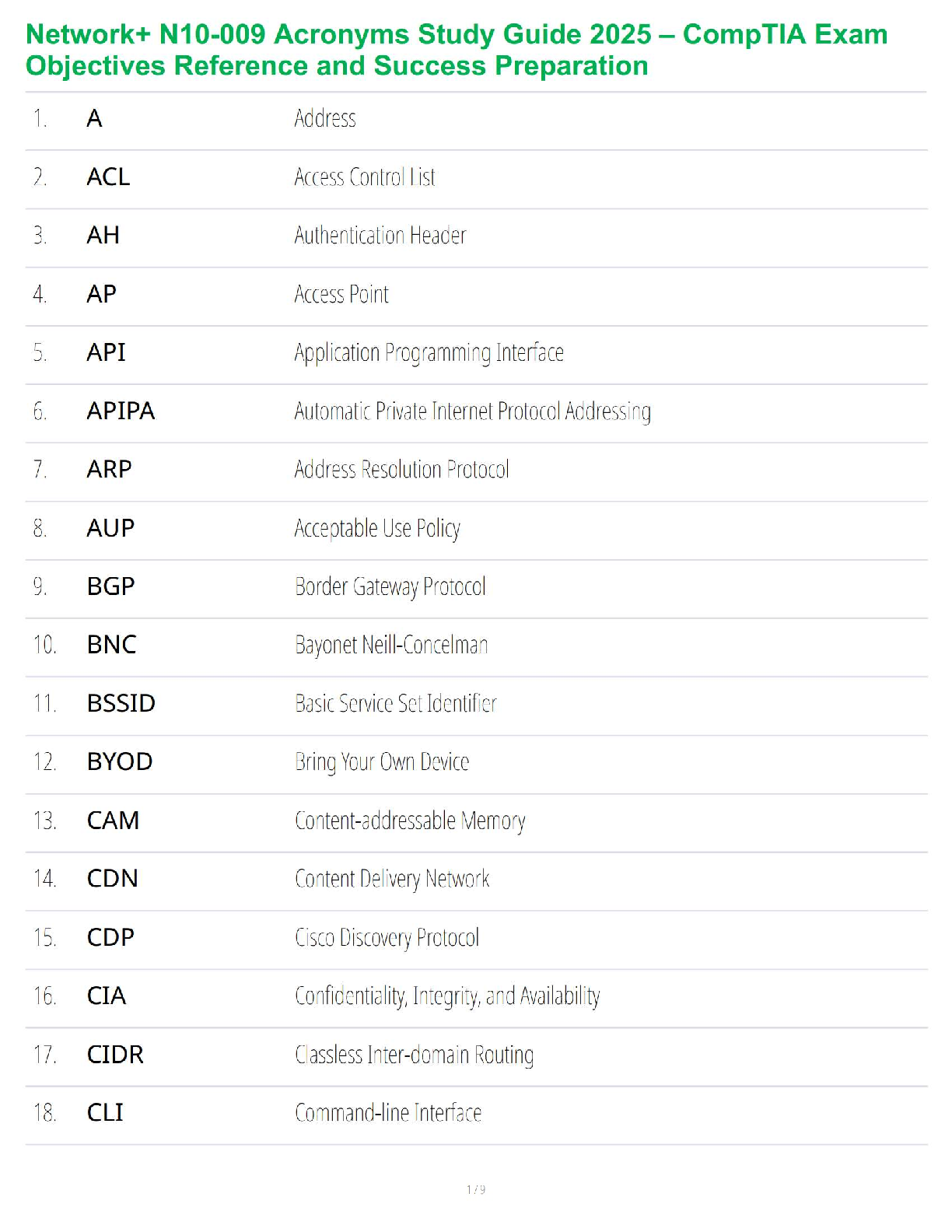
Network+ N10-009 Acronyms Study Guide 2025 – CompTIA Exam Obje...

Certified Kubernetes Administrator CKA / Score 100% / New 2025...
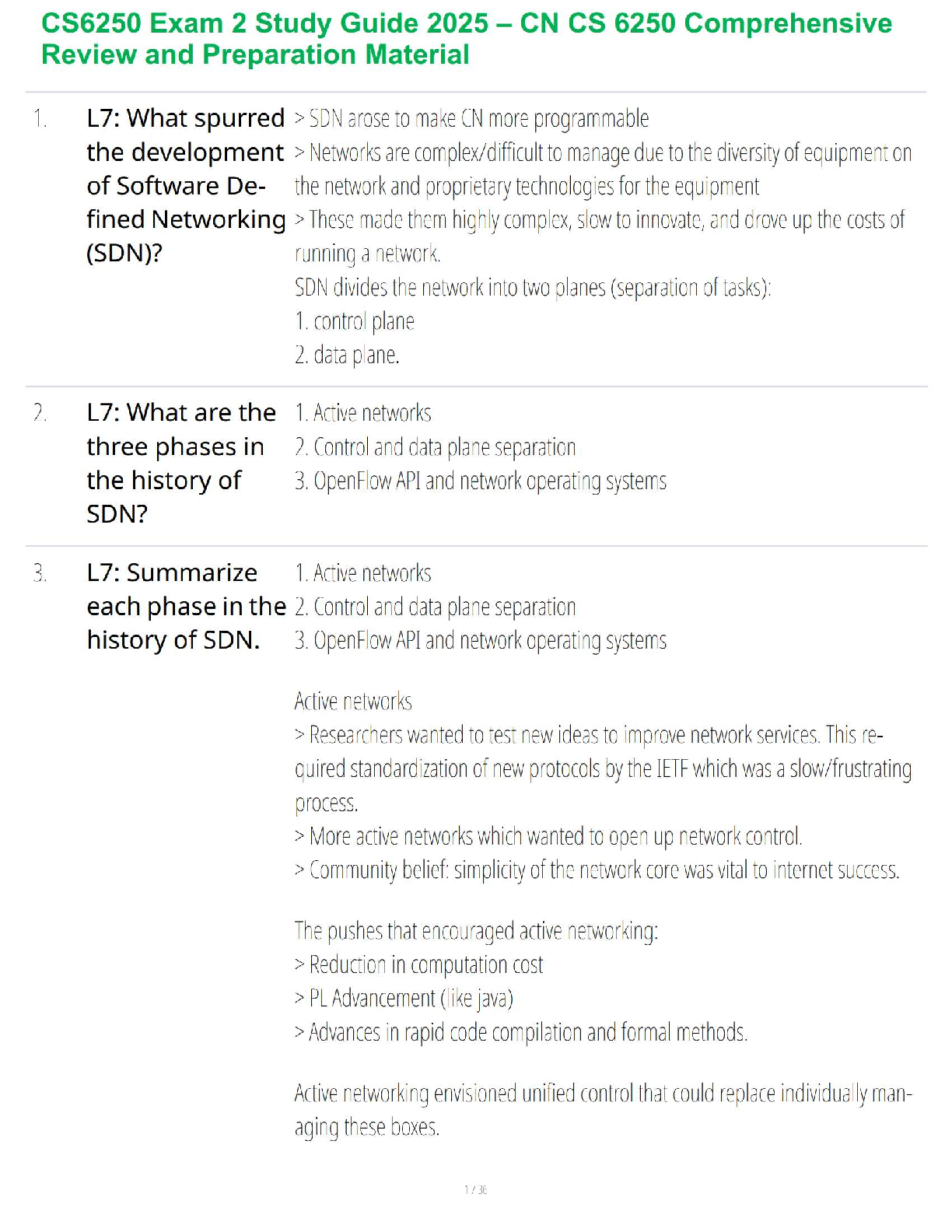
CS6250 Exam 2 Study Guide 2025 – CN CS 6250 Comprehensive Revi...
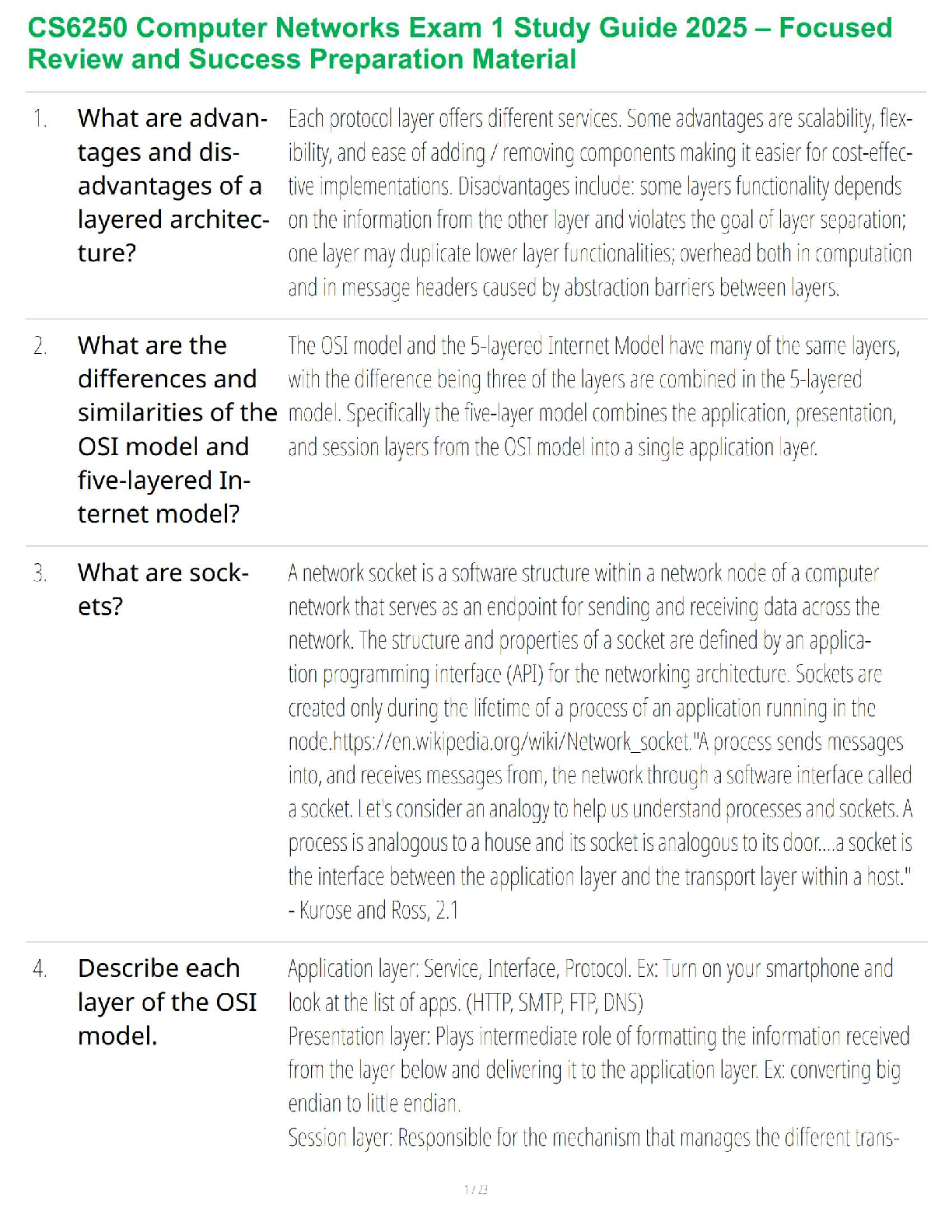
CS6250 Exam 2 Study Guide 2025 – CN CS 6250 Comprehensive Revi...