Physics > Lab Report > PHYS 1102W Introductory College Physics II Lab 1 Lab Analysis and Report (All)
PHYS 1102W Introductory College Physics II Lab 1 Lab Analysis and Report
Document Content and Description Below
Last updated: 6 months ago
Preview 3 out of 10 pages
Instant download

Loading document previews ...
Buy this Document to get the Full Access Instantly
Provided by Students Who Aced it
We Verify Document Content to Gurantee Accuracy
Reviews( 0 )
Document information
Connected school, study & course
About the document
Uploaded On
Apr 17, 2026
Number of pages
10
Written in
All

Additional information
This document has been written for:
Uploaded
Apr 17, 2026
Downloads
0
Views
110
Topic Tags
Recommended For You
Get more on Lab Report ».png)

The City College of New York, CUNYPHYSICS 204Physics_Lab_4-_In...
Test Bank for Physics for Scientists and Engineers A Strategic...

Plasma Physics, 2e by Richard Fitzpatrick (Solutions Manual)

College Physics, 3e Roger Freedman, Todd Ruskell, Philip Keste...
.png)
How Things Work The Physics of Everyday Life, 6e Louis Bloomfi...
.png)
How Things Work The Physics of Everyday Life, 6e Louis Bloomfi...
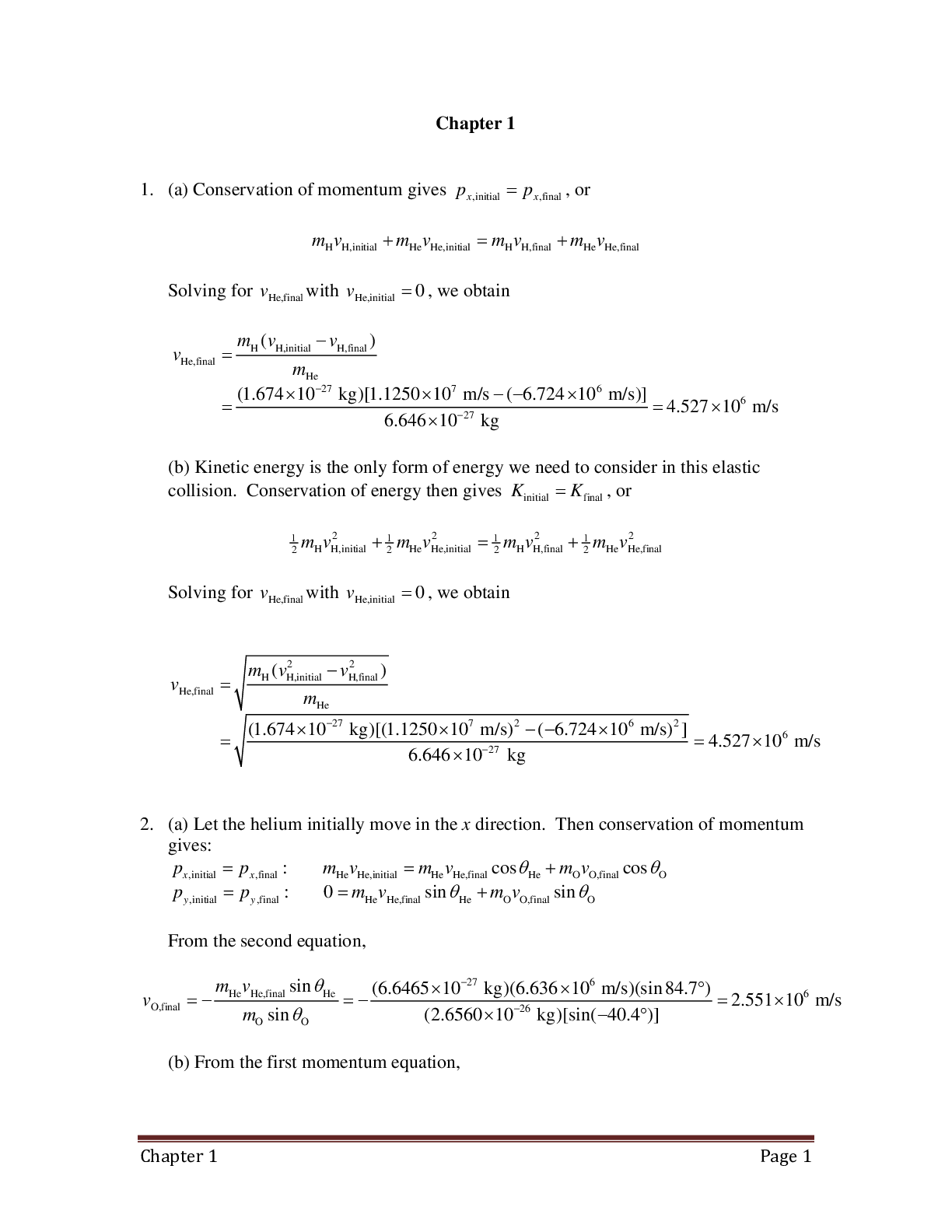
Solution Manual for Principles & Practice of Physics 2nd Editi...
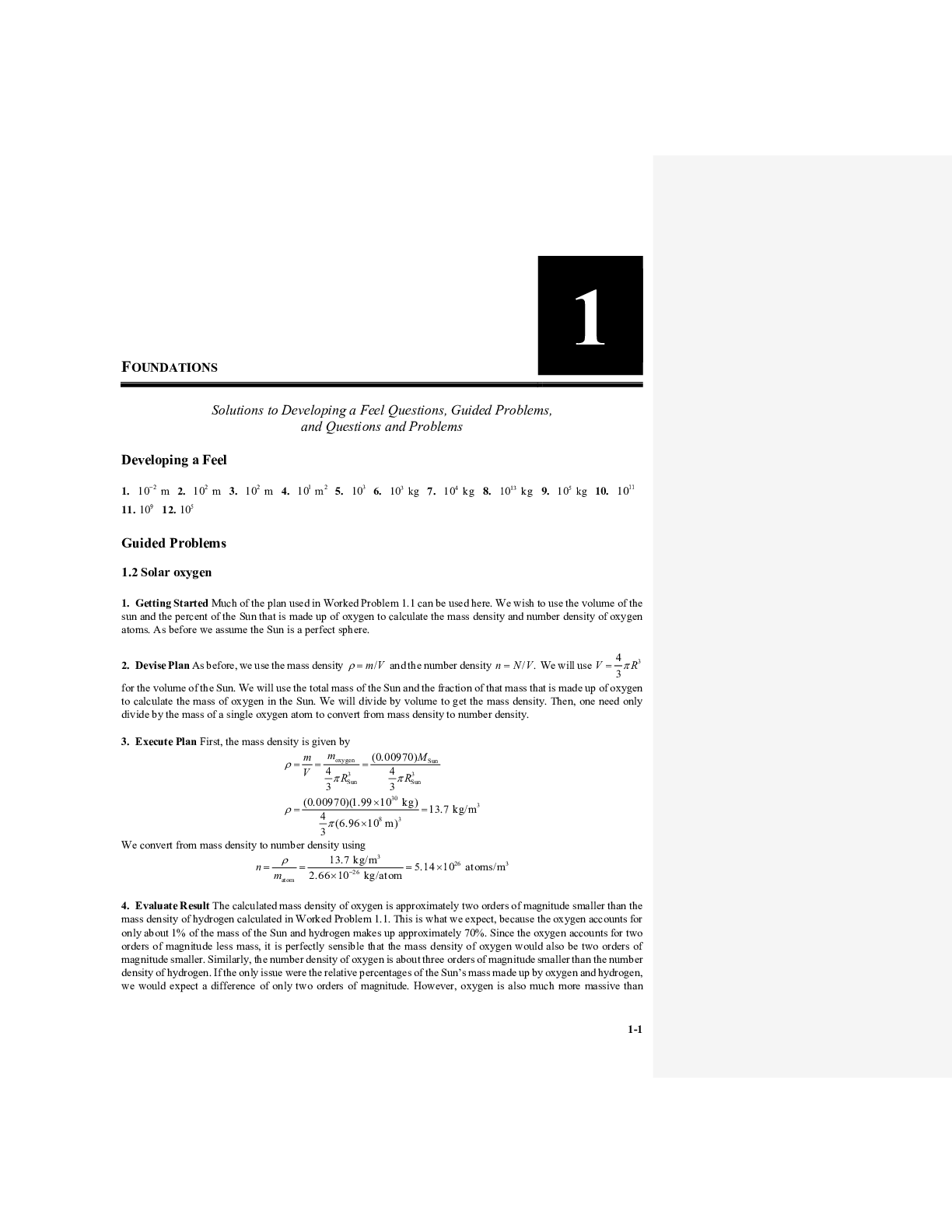
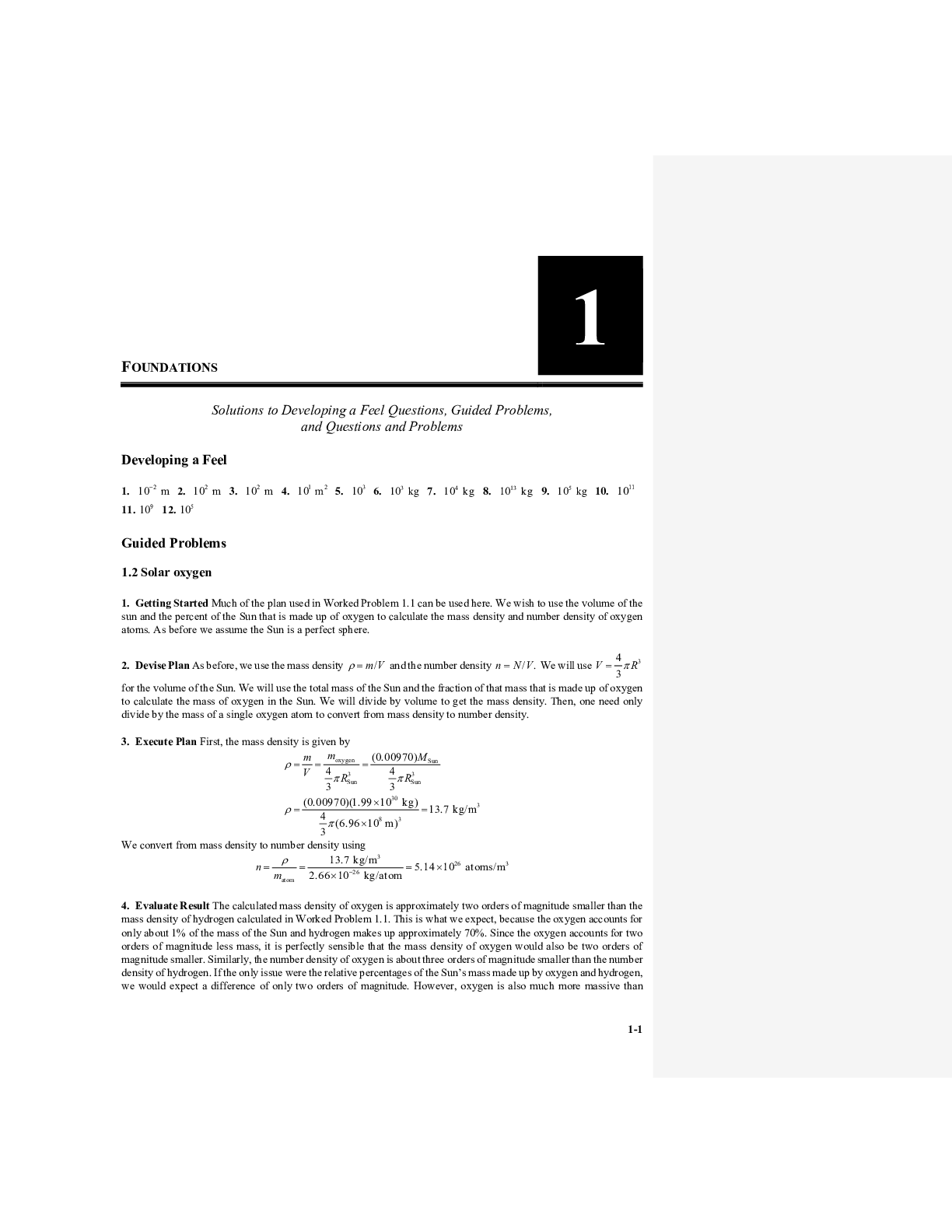
Principles & Practice of Physics, 2e Eric Jr. Ma (Solution Man...
Applied Physics, 11e Dale Ewen, Neill Schurter, Erik Gundersen...
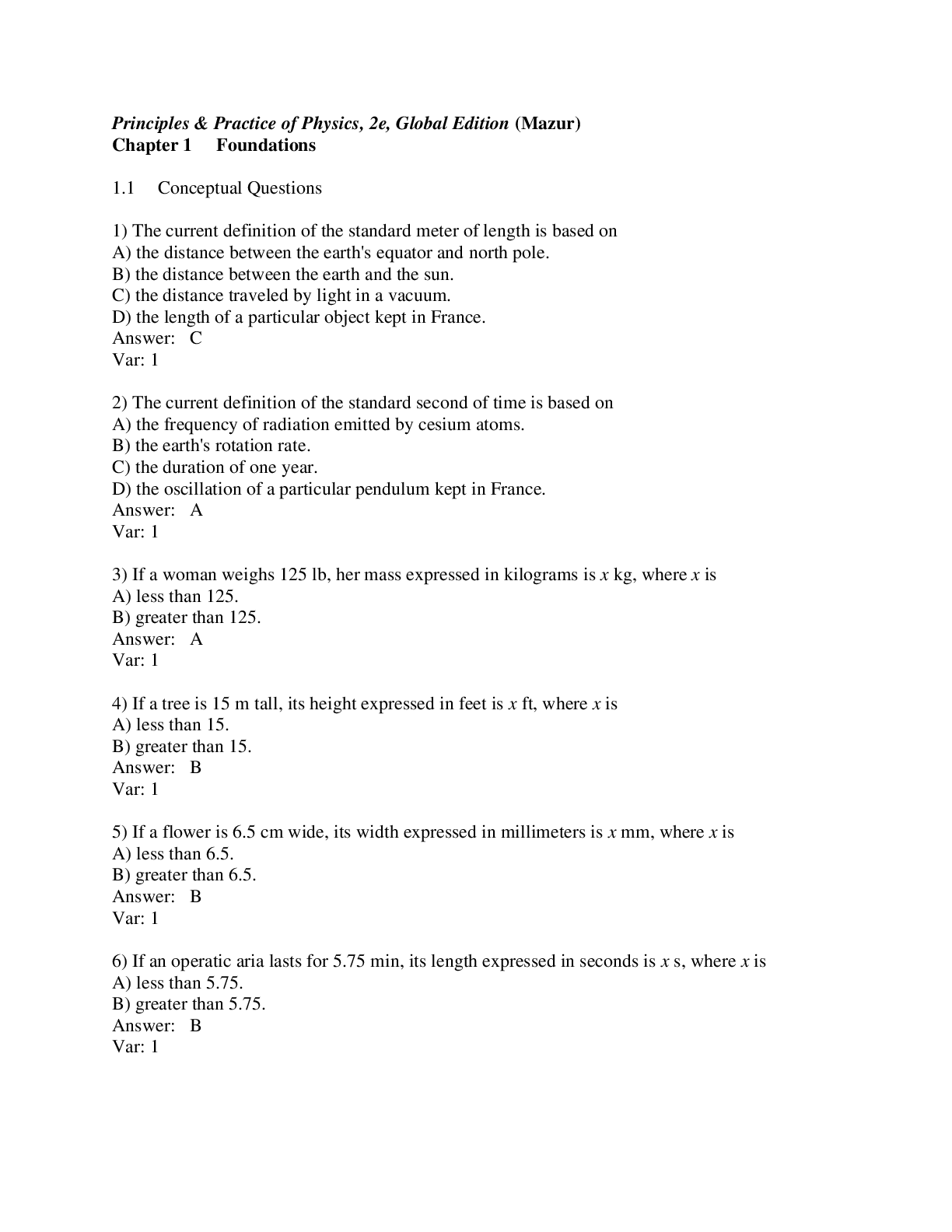
Principles & Practice of Physics (Global Edition), 2e Eric Jr....
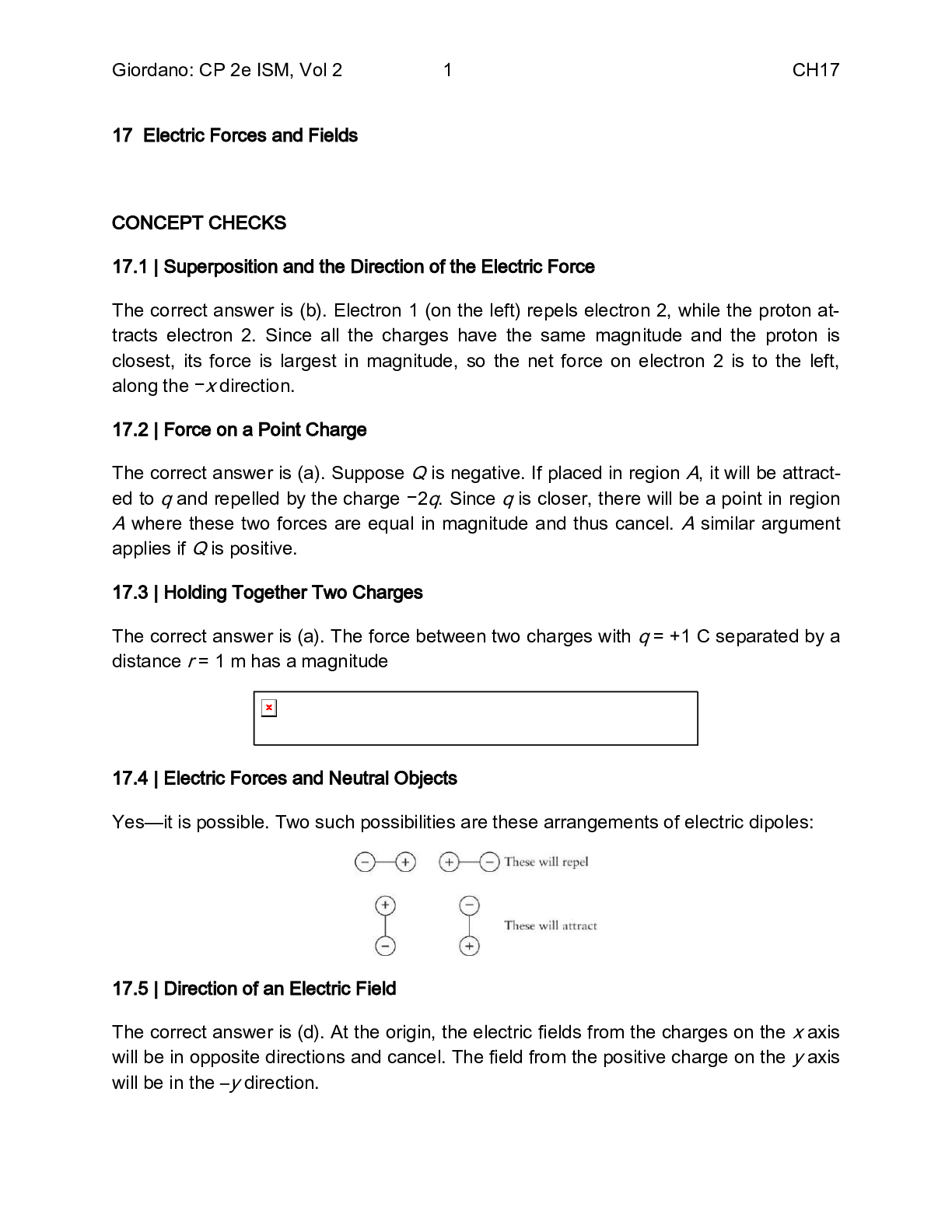
College Physics Reasoning and Relationships, 2e (Volume 2) By...
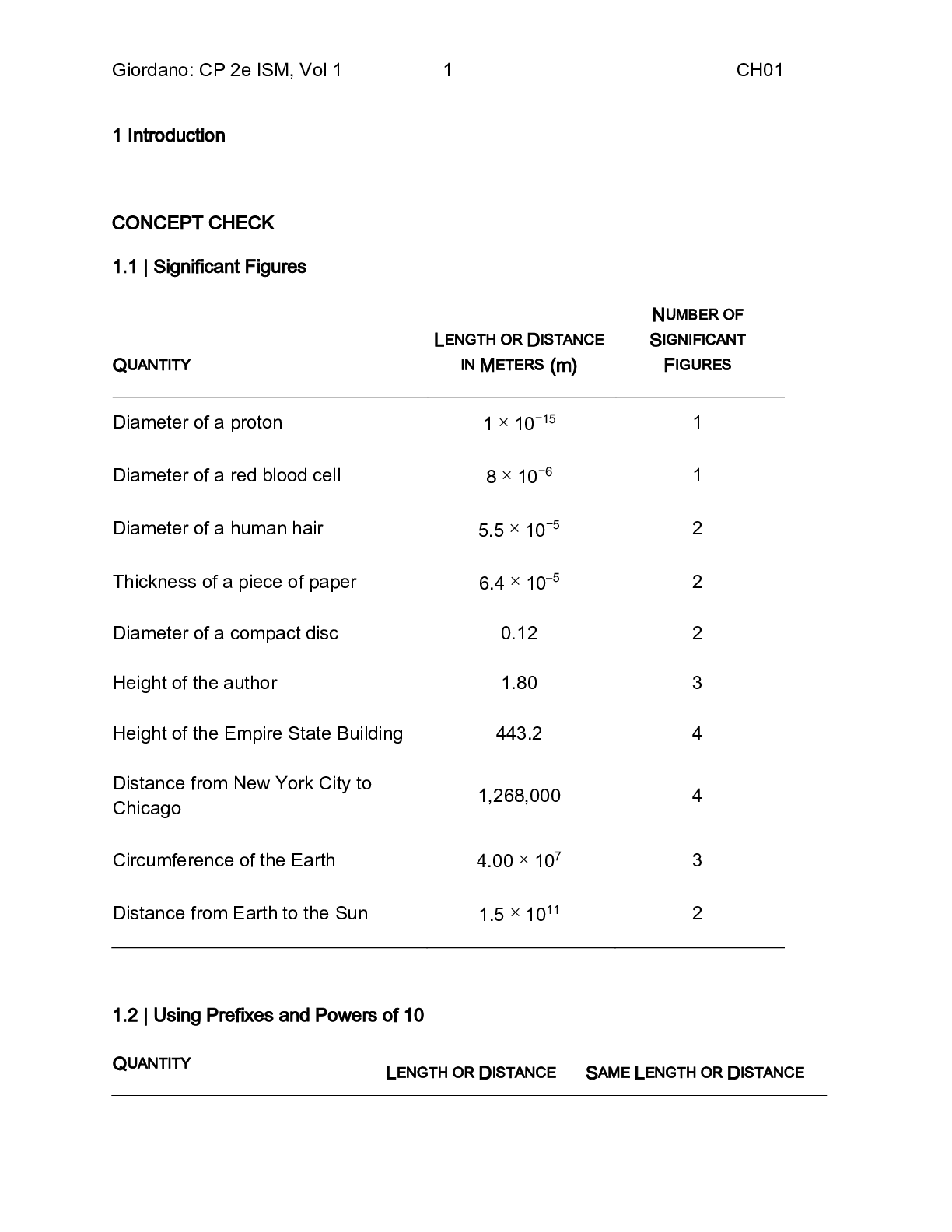
College Physics Reasoning and Relationships, 2e (Volume 1) By...
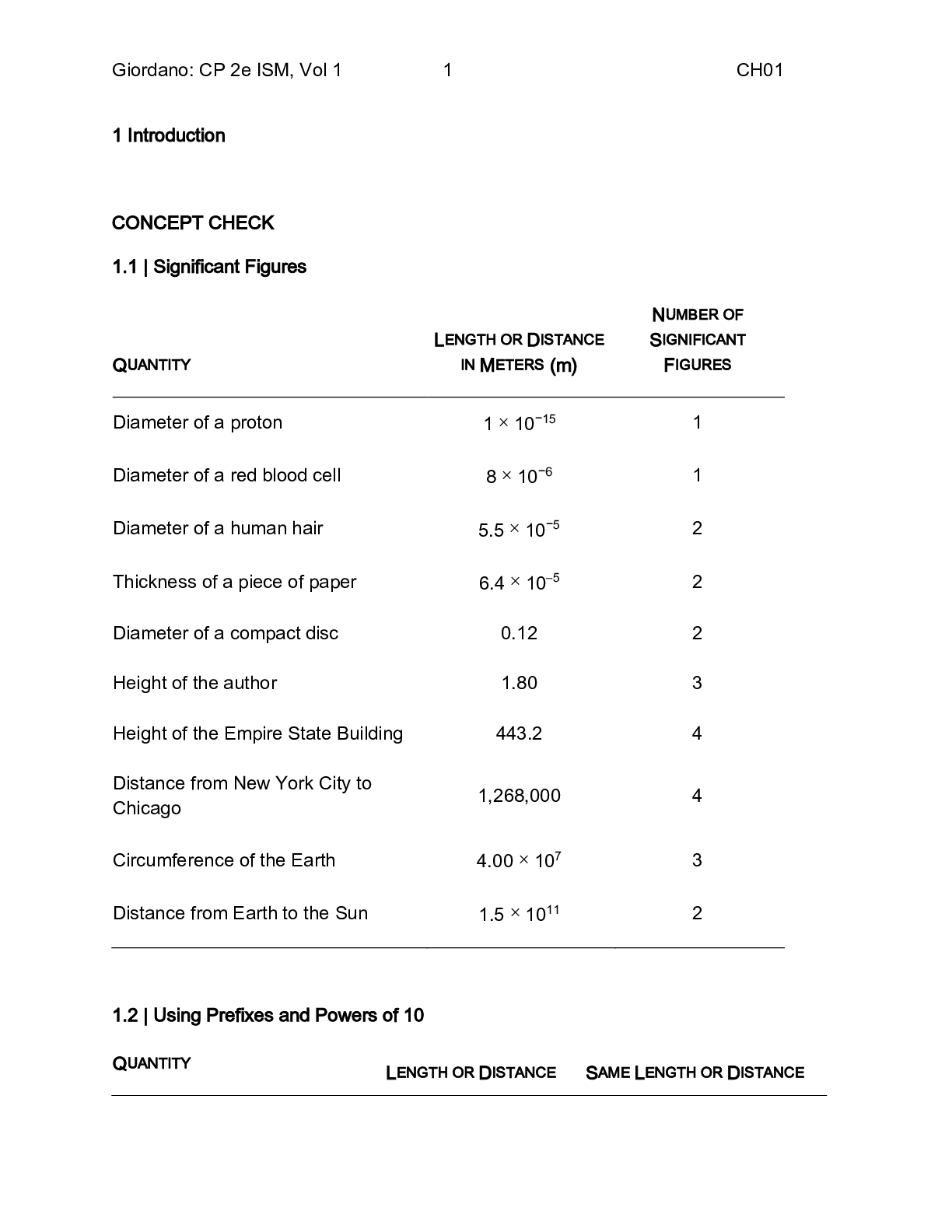
College Physics Reasoning and Relationships, 2e (Volum1+ 2) By...

College Physics, 11th Edition Raymond Serway, Chris Vuille (So...


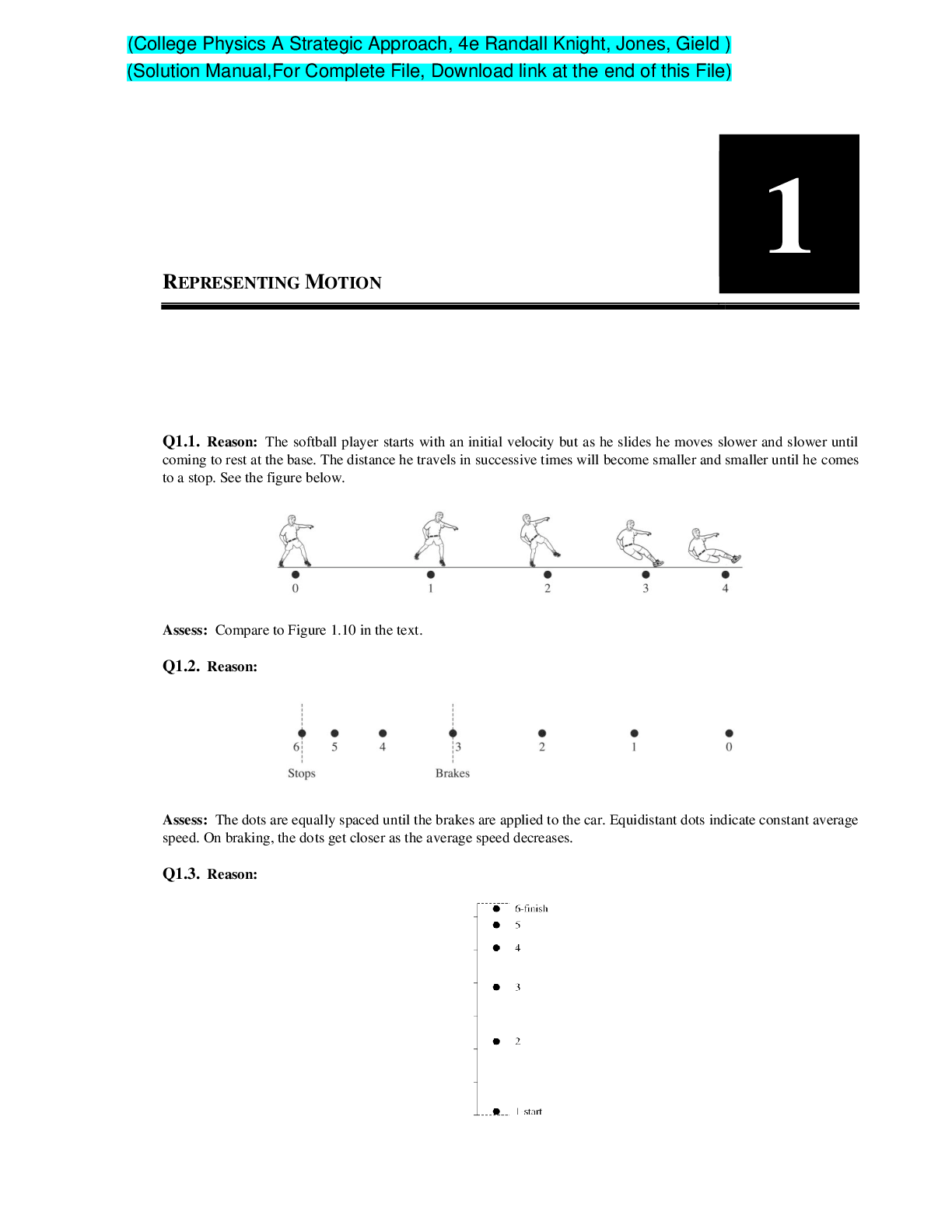
College Physics A Strategic Approach, 4e Randall Knight, Jones...



 (1).png)