English > QUESTIONS & ANSWERS > Professional Experience #4 Steps to Complete Professional Experience Four (All)
Professional Experience #4 Steps to Complete Professional Experience Four
Document Content and Description Below
Last updated: 5 months ago
Preview 1 out of 3 pages
Instant download

Buy this Document to get the Full Access Instantly
Provided by Students Who Aced it
We Verify Document Content to Gurantee Accuracy
Reviews( 0 )
Document information
Connected school, study & course
About the document
Uploaded On
Nov 06, 2020
Number of pages
3
Written in
All

Additional information
This document has been written for:
Uploaded
Nov 06, 2020
Downloads
0
Views
85
Topic Tags
Related Subjects & Courses
Explore similar study resources and related concepts.
Recommended For You
Get more on QUESTIONS & ANSWERS »


UWorld Pediatric Nursing, complete questions & answers (elabor...
.png)

On The Road To Berlin St Peter High SchoolENGLISH ENG4UU2A5 As...

Liberty University ENGL 101 Mindtap 2 assignment complete solu...

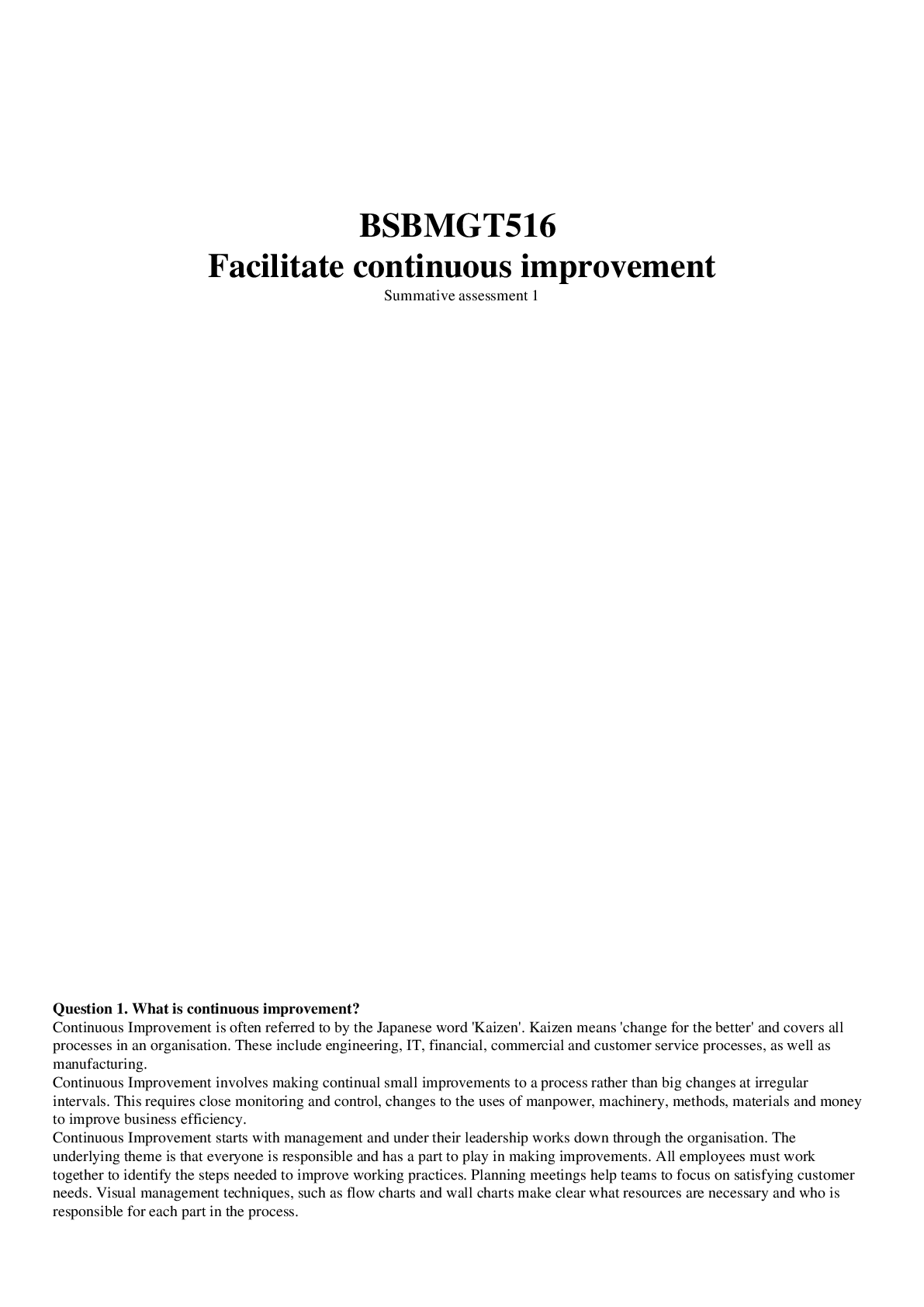
BSBMGT516 Facilitate continuous improvement Summative assessme...

 Block 1 to 7.png)
PPME Block 1-7 - Primary Professional Military Education (Enli...




.png)
.png)