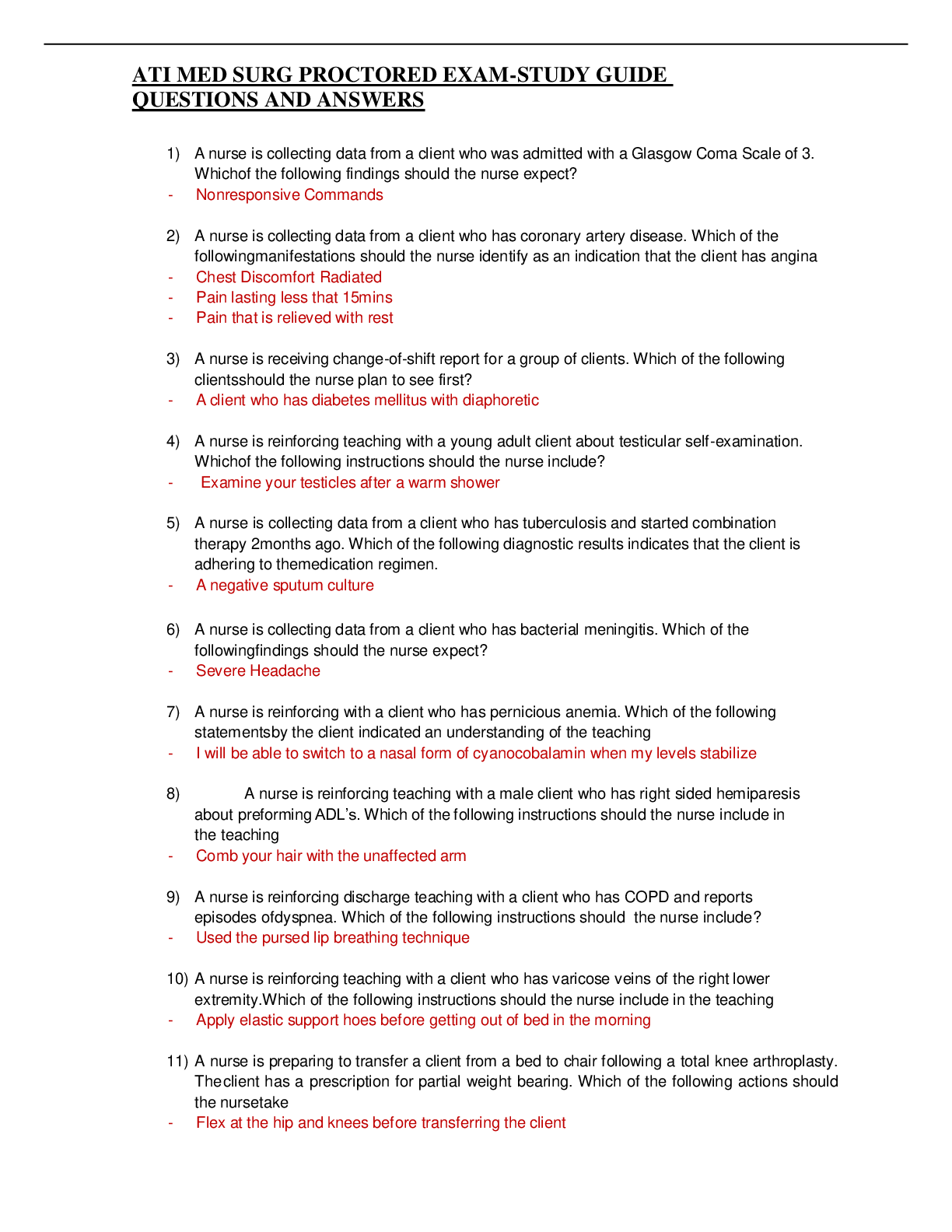
Vlocity Flex Test Questions & Answers
What are three ways to add a data field to a FlexCard canvas? - ✔✔From the Build panel, you
can use:
Field element - Drag the Field element from the Elements list in the Build pan
...
Vlocity Flex Test Questions & Answers
What are three ways to add a data field to a FlexCard canvas? - ✔✔From the Build panel, you
can use:
Field element - Drag the Field element from the Elements list in the Build panel to a state on the
canvas.
Text element - This combines text and parsed merge fields to display on a FlexCard.
Fields list - Click Fields to view the list of available data fields, then drag the data field you want
into a state on the canvas.
What does a Vlocity Action allow you to do? - ✔✔What does a Vlocity Action allow you to do?
-
It allows you to launch any valid URL including OmniScripts. Vlocity Actions are automatically
generated URLS that launch Vlocity OmniScripts, Vlocity Cards components, web pages, or
external applications.
What is an advantage and disadvantage of using an OmniScript Action? - ✔✔Advantage:
There's no need to build a Vlocity Action.
Disadvantage:
You have to configure it every time on the FlexCard.
What is an advantage to using Block elements in a FlexCard canvas? - ✔✔Block elements allow
logical groups of elements to be collapsed in a block. This helps to organize data and use space
wisely so the data doesn't clutter the FlexCard.
What is the Responsiveness feature for and how does it work? - ✔✔When the Responsive
feature is enabled in the Style Panel of a FlexCard, the responsive sizing of elements is mobilefirst. Sizing starts at the smallest viewport breakpoint and is continuously applied upwards until
the next wider viewport overrides it.
With Responsive enabled, the default width becomes the width of the smallest viewport
breakpoint.
How can you change the Name or Author of a FlexCard? - ✔✔You cannot edit a FlexCard name
or author after you create it. To change either, you must clone the FlexCard.
What are the naming restrictions for the Name and Author fields in a FlexCard? - ✔✔The
combination of the name and author for a FlexCard must be unique per org. You can only use
alphanumeric characters.
You must begin with a letter and can't have:
Spaces
Two consecutive underscores or end with one
Where can you set and configure the data source for a FlexCard? - ✔✔You can select and
configure the data source for a FlexCard in the Data Source wizard when you create a new
FlexCard and under the Data Source section in the Setup Panel for a FlexCard.
What panel needs to be open in order to drag elements onto a FlexCard canvas? - ✔✔The Build
panel holds the elements list to build a FlexCard.
Why are the Name, Title, and Author fields disabled in the Setup panel in every FlexCard? -
✔✔Once a FlexCard is created, you can not change the name, title, and author. To do this, you
must clone the FlexCard.
What are some advantages of using child FlexCards? - ✔✔Child FlexCards are reusable.
A child FlexCard can have its own data source, independent of its parent. This is advantageous
when you want to display data from more than one data source on a FlexCard.
Child FlexCards also are used in flyout actions, which help with organizing how data displays.
For example, if you want data accessible in a FlexCard but it isn't necessary to display it at all
times, you can use a flyout action to display it using a child FlexCard in a popover or modal
window.
What is the best way to add a field that displays a date or currency, and why? - ✔✔Drag the
Field element or drag a field from the Fields list in the Build panel. In Properties, the Field Type
allows you to set what type of data is displayed in the field and will allow you to set the format:
Date, Number, Text, Currency, and Date Time.
The other option for a data field is the Text element, which doesn't allow you to adjust the Field
Type.
Can a child FlexCard have its own data source? - ✔✔A child FlexCard can have its own data
source or use the parent data source. If it is configured with its own data source but the parent
has a data node selected, the child will ignore its data source and inherit from the parent data
source (as long as the fields match).
How do you configure a child FlexCard to use the data source of its parent FlexCard? - ✔✔In the
parent, select the child FlexCard element and select a Data Node in the Properties. It doesn't
matter if the child FlexCard has its own data source, if the parent has a data node set, the child
will use the parent data source.
What can you do in Publish Options? - ✔✔You can change the name of the custom component
(FlexCard) so it will be visible under a different name than set when it was created. You can also
make the FlexCard accessible for use and set targets for where it can be used: App Page, Home
Page, Record Page, Community Page, and Community Default
Why might you not be able to view a flyout in a FlexCard? - ✔✔The child FlexCard used for the
flyout action isn't activated or, if it's using the data source of the parent, the fields don't match,
which would result in no data populating.
What is the Repeat Records feature and why must it be disabled for a datatable? - ✔✔New
FlexCards are defaulted with Repeat Records enabled. This means the data loops through
records. When you want to display data that doesn't need to be looped through and displayed as a
list, the feature has to be disabled.
Datatables already loop over and list multiple records.
When would you clone a FlexCard instead of version it? - ✔✔Clone if you:
want the FlexCard to be available independently from the parent
want to change the Name or Author
When would you version a FlexCard instead of clone it?The FlexCard is in use somewhere, such
as an App or Record Page.
The FlexCard is active. - ✔✔Version if you:
want the new FlexCard to replace the old one
Only one version of a FlexCard may be active at a time.
What are two reasons why the UI will not let you delete a FlexCard? - ✔✔The FlexCard is in use
somewhere, such as an App or Record Page.
The FlexCard is active.
[Show More]






![Preview of [SOLVED] EDCO 740 / EDCO740 Quiz 1 (LATES 2021/2022 Graded A)](https://scholarfriends.com/storage/EDCO_740_Quiz_1.png)