Information Technology > Manual > ITS 14344 CRUD Operations with MySQL and C# WinForms Laboratory Manual (All)
ITS 14344 CRUD Operations with MySQL and C# WinForms Laboratory Manual
Document Content and Description Below
Last updated: 5 months ago
Preview 7 out of 54 pages
Instant download

Loading document previews ...
Buy this Document to get the Full Access Instantly
Provided by Students Who Aced it
We Verify Document Content to Gurantee Accuracy
Reviews( 0 )
Document information
Connected school, study & course
About the document
Uploaded On
Apr 28, 2026
Number of pages
54
Written in
All

Additional information
This document has been written for:
Uploaded
Apr 28, 2026
Downloads
0
Views
60
Topic Tags
Recommended For You
Get more on Manual »

Information Technology Project Management 8e Kathy Schwalbe (S...

Information Technology Project Management 5th Edition Jack Mar...

Information Technology for Management Digital Strategies for I...

Information Technology for Management Advancing Sustainable Pr...

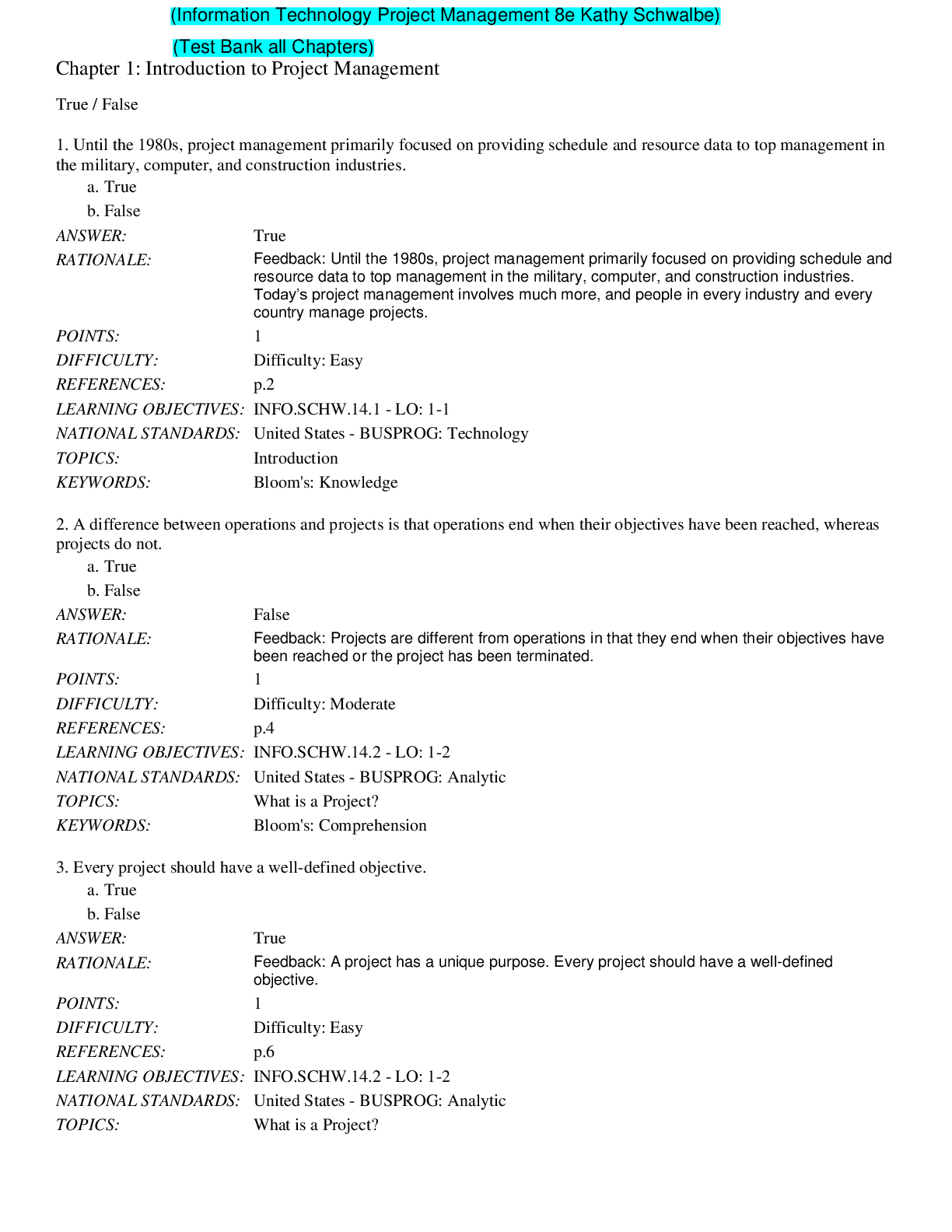
Information Technology Project Management 8th Edition Kathy Sc...

Test Bank for Information Technology Project Management 5th Ed...

Information Technology for Managers, 2e George Reynolds (Test...

Information Technology for Management Digital Strategies for I...

Information Technology Auditing, 4e James A. Hall (Test Bank)

Information Technology Auditing, 4e James A. Hall (Solution Ma...

Information Technology Auditing 3e James A. Hall (Solution Man...

Information Technology for the Health Professions, 4e Lillian...

Information Technology for Management Advancing Sustainable Pr...

Information Technology Auditing 3e James A. Hall (Test Bank)
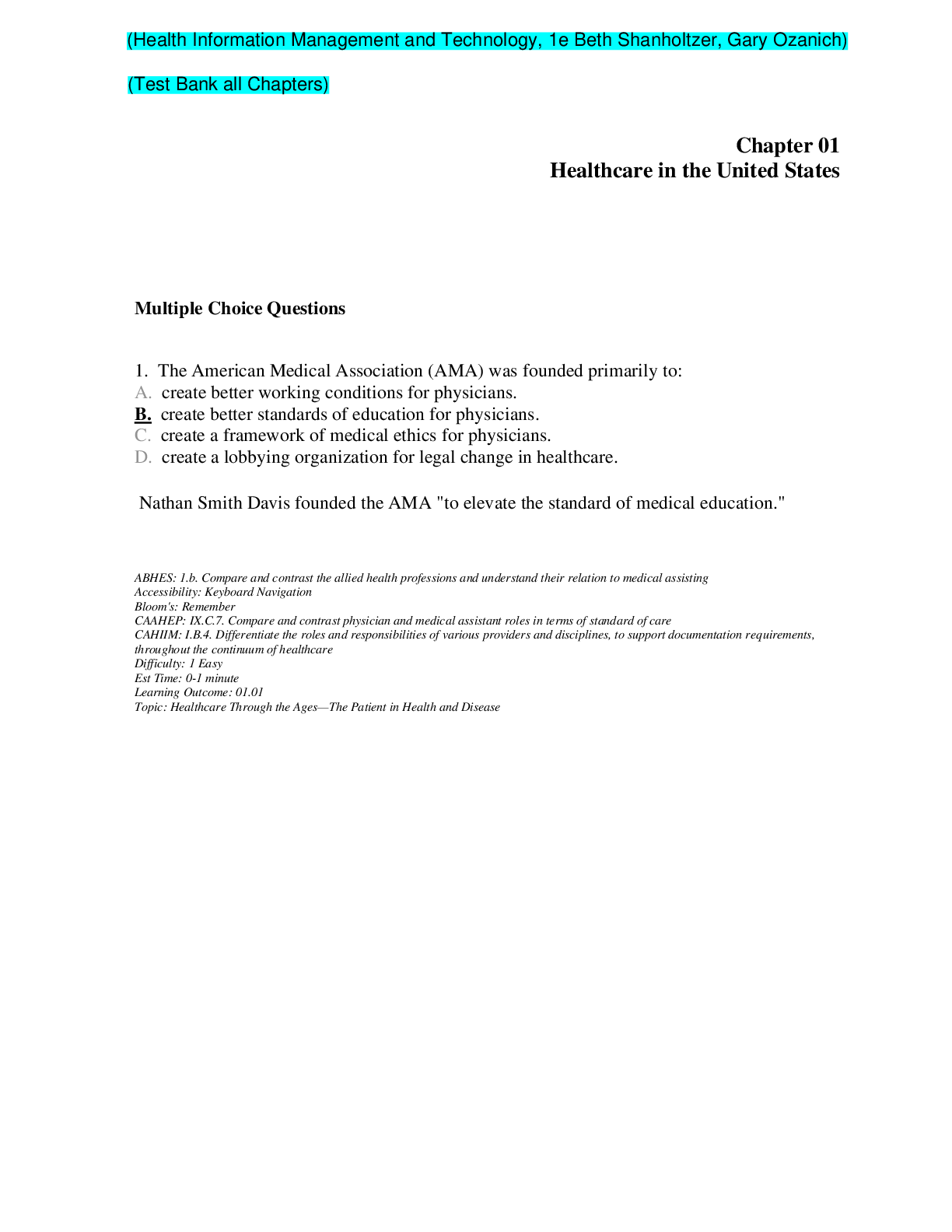
Health Information Management and Technology, 1e Beth Shanholt...
.png)
Introduction to Information Systems, 7e Kelly Rainer, Brad Pri...
.png)
Introduction to Information Systems, 4th Canadian Edition, 4e...
.png)