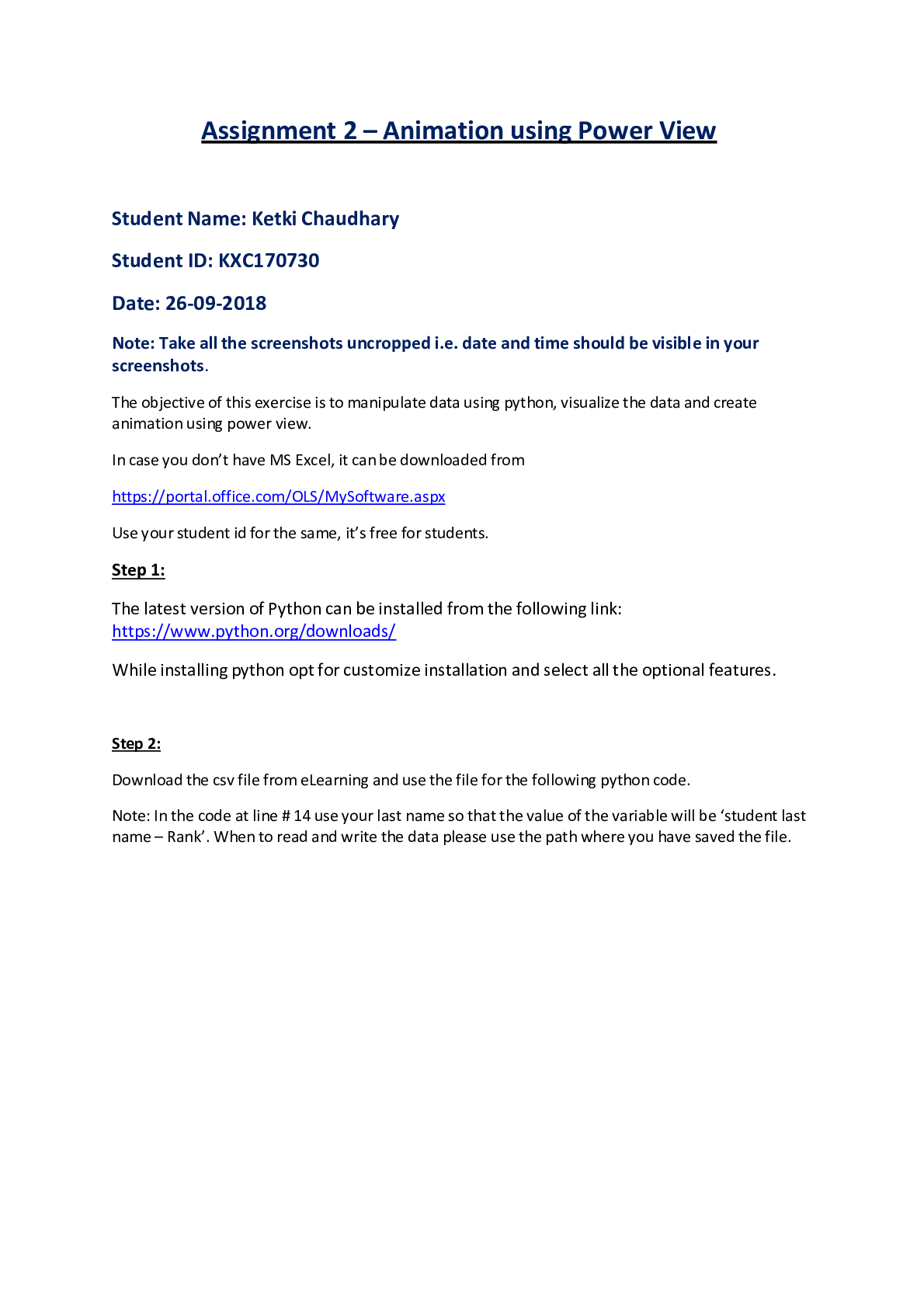
Step 1:
The latest version of Python can be installed from the following link: https://www.python.org/downloads/
While installing python opt for customize installation and select all the optional features.
Ste
...
Step 1:
The latest version of Python can be installed from the following link: https://www.python.org/downloads/
While installing python opt for customize installation and select all the optional features.
Step 2:
Download the csv file from eLearning and use the file for the following python code.
Note: In the code at line # 14 use your last name so that the value of the variable will be ‘student last name – Rank’. When to read and write the data please use the path where you have saved the file.
Python Code:
Step 3:
Run the Python code from the previous step. This must be done at the same location where you have created the file. This can be done by using following command:
python Student_Name.py
Note: Make sure the lines of code are indented as in the screenshot. Python read a block of code based on indentation. Not having proper indentation will make the line of code go out of the loop. Use tab space for indentation and not spacebar.
Step 3:
Run the Python code from the previous step. This must be done at the same location where you have created the file. This can be done by using following command:
python Student_Name.py
Note: Make sure the lines of code are indented as in the screenshot. Python read a block of code based on indentation. Not having proper indentation will make the line of code go out of the loop. Use tab space for indentation and not spacebar.
After executing the code, answer the following questions:
I. Which columns are being merged to form a new column? What is the name of the new column?
II. Which two columns are being transposed?
III. What is the name of the new column created?
1. The columns State and Place in Largest_Cities_CSV.csv merge to form the column State – Place in the new python generated excel file.
2. The columns Population and Year are being transposed.
Years in Largest_Cities_CSV.csv are represented in the first row, and their corresponding population is written in the second column under ‘year’. Their respective values are placed in the column Population (column 3) right next to Year.
3. The column Chaudhary – Rank is the new column created.
Step 4:
Convert the file created in the above step into xlsx format as power view works in xlsx format. Open the Student_Name.xlsx file and format the data into tabular form using ‘Format as Table’ option on the ‘Home’ menu. Give a name to your table.
Output of the formatted table should look like below screenshot:
After executing the code, answer the following questions:
I. Which columns are being merged to form a new column? What is the name of the new column?
II. Which two columns are being transposed?
III. What is the name of the new column created?
1. The columns State and Place in Largest_Cities_CSV.csv merge to form the column State – Place in the new python generated excel file.
2. The columns Population and Year are being transposed.
Years in Largest_Cities_CSV.csv are represented in the first row, and their corresponding population is written in the second column under ‘year’. Their respective values are placed in the column Population (column 3) right next to Year.
3. The column Chaudhary – Rank is the new column created.
Step 4:
Convert the file created in the above step into xlsx format as power view works in xlsx format. Open the Student_Name.xlsx file and format the data into tabular form using ‘Format as Table’ option on the ‘Home’ menu. Give a name to your table.
Output of the formatted table should look like below screenshot:
................................................CONTINUED.................
[Show More]

.png)
.png)

x.png)


![Preview of NUR2488 / NUR 2488 Exam 2 Study Guide [In Class Review] : Mental Health Nursing - Rasmuss](https://scholarfriends.com/storage/Mental Health Exam 2 Study Guide [In class review] MY21.png)


.png)