QuickBooks Chapter 2 Questions and
Answers Already Graded A
How are bank charges, which have not been recorded in QBO, classified? ✔✔Bank charges
which have not yet been recorded in QBO are not recognized and are temp
...
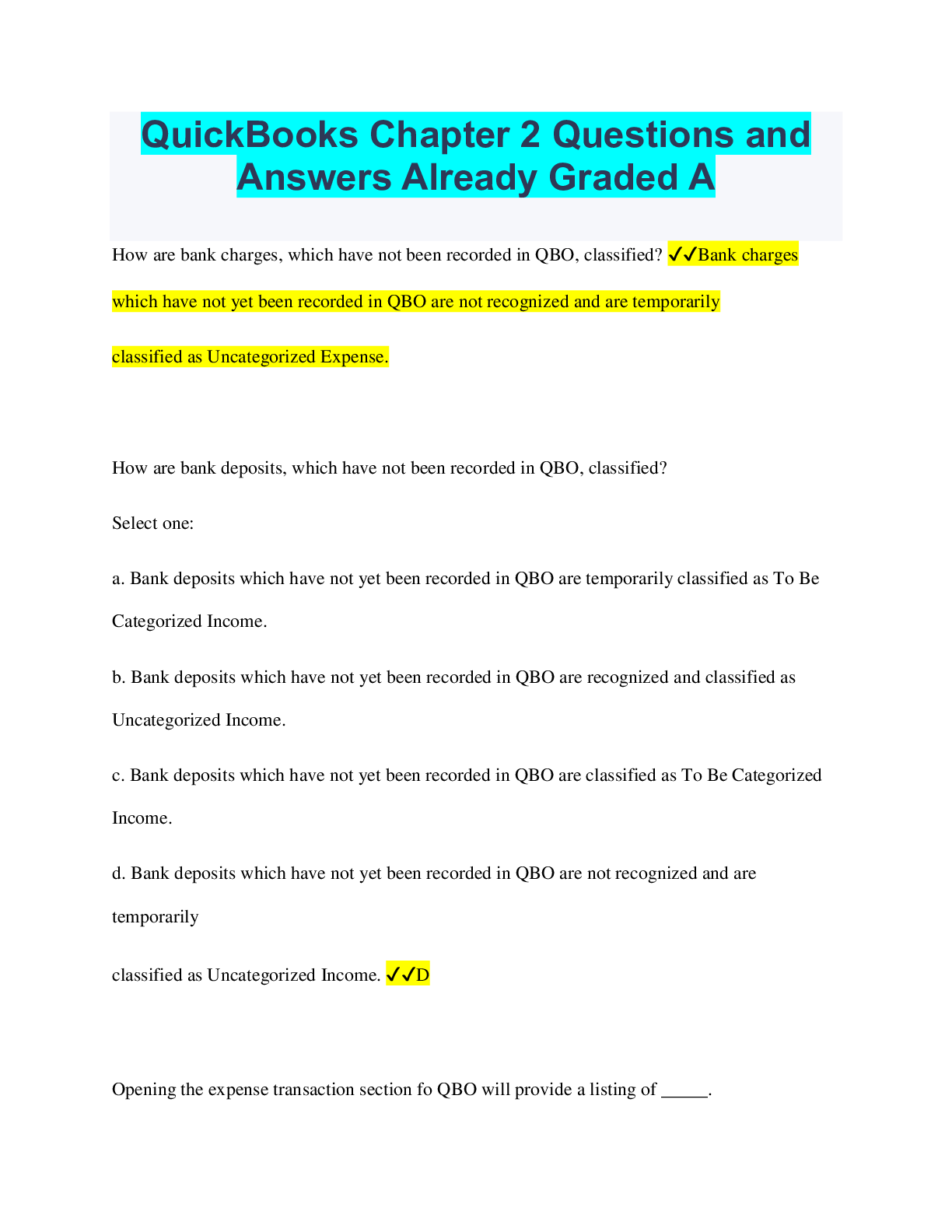
QuickBooks Chapter 2 Questions and
Answers Already Graded A
How are bank charges, which have not been recorded in QBO, classified? ✔✔Bank charges
which have not yet been recorded in QBO are not recognized and are temporarily
classified as Uncategorized Expense.
How are bank deposits, which have not been recorded in QBO, classified?
Select one:
a. Bank deposits which have not yet been recorded in QBO are temporarily classified as To Be
Categorized Income.
b. Bank deposits which have not yet been recorded in QBO are recognized and classified as
Uncategorized Income.
c. Bank deposits which have not yet been recorded in QBO are classified as To Be Categorized
Income.
d. Bank deposits which have not yet been recorded in QBO are not recognized and are
temporarily
classified as Uncategorized Income. ✔✔D
Opening the expense transaction section fo QBO will provide a listing of _____.
Select one:
a. recent credit card, bills, expenses, checks, and cash transactions.
b. recent credit card, bills, expenses, purchase orders, checks, bill payments, and cash
transactions.
c. recent credit card, expenses, checks, and cash transactions ✔✔B
Opening the sales transaction section of QBO will provide a listing of _____.
Select one:
a. only unbilled activity in the last 30 days.
b. recent sales invoices.
c. recent payments.
d. recent sales invoices and payments. ✔✔D
What lists are available in QBO?
Select one:
a. List options include: products and services, locations, custom form styles, recurring
transactions, terms, and chart of accounts.
b. List options include: payment methods, chart of accounts, recurring transactions, products and
services, terms, and attachments.
c. List options include: chart of accounts, recurring transactions, products and services, locations,
custom form styles, payment methods, terms, classes, and attachments.
d. None of these options include all the lists available in QBO. ✔✔D
What steps do you take to view a specific bill from a specific vendor?
Select one:
a. Open the Vendor window from the navigation bar, click a specific vendor name, and then
click a
specific bill.
b. Click on Vendor in the menu, then choose Vendor Information, then select Bills, choose a
specific bill.
c. Click the Vendor tab at the top of the screen, find the vendor in the listing, then Bills, choose
the specific bill.
d. Open the Vendor window from the navigation bar, click on Bills, find your vendor and the
specific bill. ✔✔A
What steps do you take to view a specific employee's information?
Select one:
a. Click on Employees in the menu, enter employees name, click Information.
b. Open the Employee window from the navigation bar and the click Edit next to a specific
employee
name.
c. Click on Employee, choose the employee from the dropdown listing, click Information.
d. In the search bar at the top of the screen, type in the employees first and last name, click Edit
next to the specific employee's name. ✔✔B
What steps do you take to view all reports related to accounts payable (A/P)?
Select one:
a. Click Reports then type A/P in the reports search box.
b. Click on Reports in the menu, then choose Vendor Information, then select Accounts Payable.
c. Click Reports, find the vendor in the drop down menu, then select the A/P button.
d. In the search bar at the top of the screen type in the vendor's name, then click the A/P button at
the bottom of the screen. ✔✔A
What steps do you take to view customer information in a new tab?
Select one:
a. Right‐click Customers from the navigation bar and then select Open Link in New Tab.
b. Open the Customer window from the navigation bar and then click a customer name.
c. Click on Customers in the menu, then choose Customer Information.
d. Click the Customers tab at the top of the screen, and then find the customer name in the
dropdown menu. ✔✔A
What steps do you take to view detail transactions related to a particular customer?
Select one:
a. Open the Customer window from the navigation bar, type in the customer's ID number, then
choose Transactions in the dropdown menu.
b. Click on Customers in the menu, then choose Customer Information, then Transactions.
c. Click the Customers tab at the top of the screen, select the customer's name, then Transactions.
d. Open the Customer window from the navigation bar and then click a customer name. ✔✔D
[Show More]