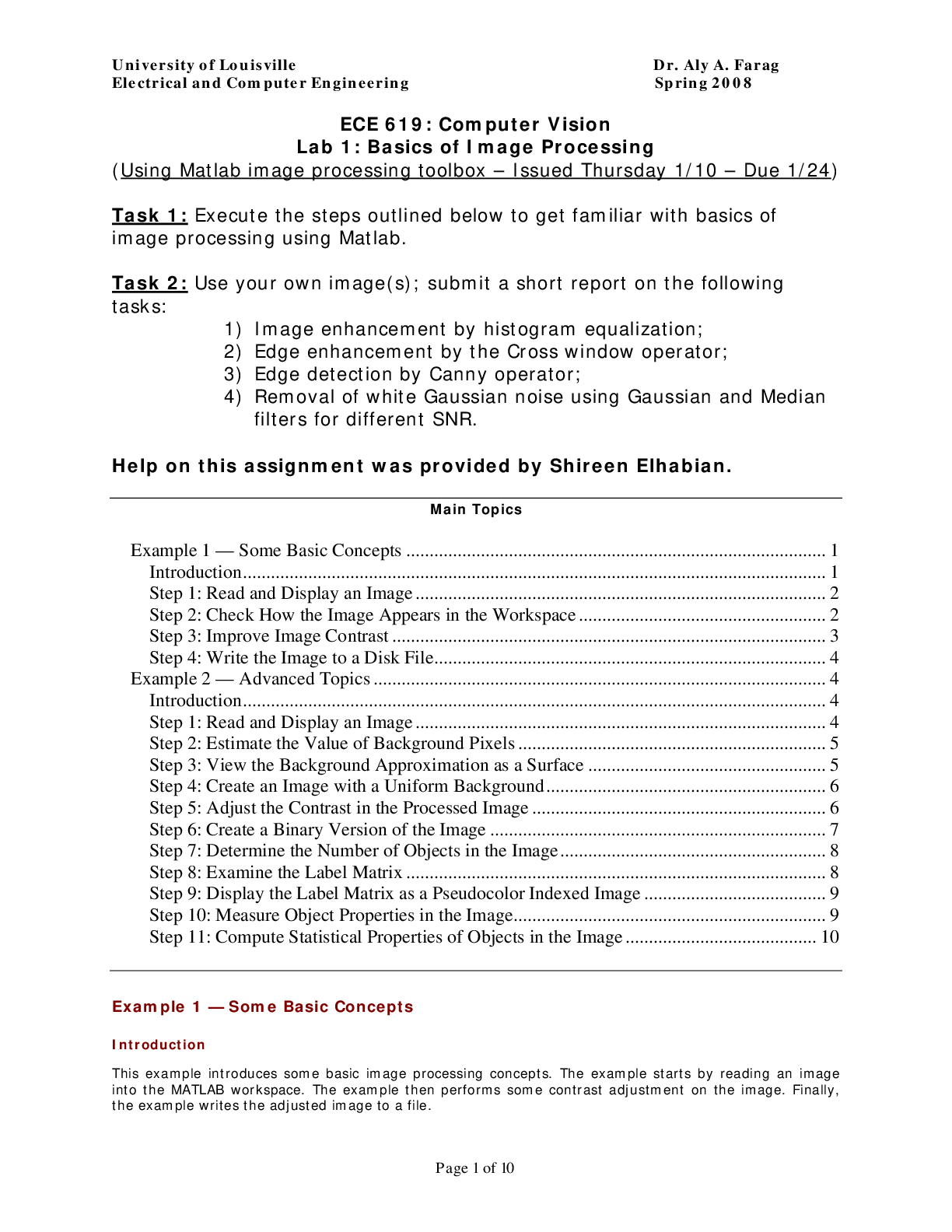
ECE 619: Computer Vision
Lab 1: Basics of Image Processing
(Using Matlab image processing toolbox – Issued Thursday 1/10 – Due 1/24)
Task 1: Execute the steps outlined below to get familiar with basics of
image proce
...
ECE 619: Computer Vision
Lab 1: Basics of Image Processing
(Using Matlab image processing toolbox – Issued Thursday 1/10 – Due 1/24)
Task 1: Execute the steps outlined below to get familiar with basics of
image processing using Matlab.
Task 2: Use your own image(s); submit a short report on the following
tasks:
1) Image enhancement by histogram equalization;
2) Edge enhancement by the Cross window operator;
3) Edge detection by Canny operator;
4) Removal of white Gaussian noise using Gaussian and Median
filters for different SNR.
Help on this assignment was provided by Shireen Elhabian.
Main Topics
Example 1 — Some Basic Concepts .......................................................................................... 1
Introduction............................................................................................................................. 1
Step 1: Read and Display an Image ........................................................................................ 2
Step 2: Check How the Image Appears in the Workspace ..................................................... 2
Step 3: Improve Image Contrast ............................................................................................. 3
Step 4: Write the Image to a Disk File.................................................................................... 4
Example 2 — Advanced Topics ................................................................................................. 4
Introduction............................................................................................................................. 4
Step 1: Read and Display an Image ........................................................................................ 4
Step 2: Estimate the Value of Background Pixels .................................................................. 5
Step 3: View the Background Approximation as a Surface ................................................... 5
Step 4: Create an Image with a Uniform Background............................................................ 6
Step 5: Adjust the Contrast in the Processed Image ............................................................... 6
Step 6: Create a Binary Version of the Image ........................................................................ 7
Step 7: Determine the Number of Objects in the Image......................................................... 8
Step 8: Examine the Label Matrix .......................................................................................... 8
Step 9: Display the Label Matrix as a Pseudocolor Indexed Image ....................................... 9
Step 10: Measure Object Properties in the Image................................................................... 9
Step 11: Compute Statistical Properties of Objects in the Image ......................................... 10
Example 1 — Some Basic Concepts
Introduction
This example introduces some basic image processing concepts. The example starts by reading an image
into the MATLAB workspace. The example then performs some contrast adjustment on the image. Finally,
the example writes the adjusted image to a file.
Page 1 of 10University of Louisville Dr. Aly A. Farag
Electrical and Computer Engineering Spring 2008
Step 1: Read and Display an Image
First, clear the MATLAB workspace of any variables and close open figure windows.
close all
To read an image, use the imread command. The example reads one of the sample images included with
Image Processing Toolbox, pout.tif, and stores it in an array named I.
I = imread('pout.tif');
Now display the image. The toolbox includes two image display functions: imshow and imtool. imshow is
the toolbox's fundamental image display function. imtool starts the Image Tool which presents an
integrated environment for displaying images and performing some common image processing tasks. The
Image Tool provides all the image display capabilities of imshow but also provides access to several other
tools for navigating and exploring images, such as scroll bars, the Pixel Region tool, Image Information tool,
and the Contrast Adjustment tool. This example uses imshow.
imshow(I)
Grayscale Image pout.tif
Step 2: Check How the Image Appears in the Workspace
To see how the imread function stores the image data in the workspace, check the Workspace browser in
the MATLAB desktop. The Workspace browser displays information about all the variables you create during
a MATLAB session. The imread function returned the image data in the variable I, which is a 291-by-240
element array of uint8 data. MATLAB can store images as uint8, uint16, or double arrays.
You can also get information about variables in the workspace by calling the whos command.
whos
MATLAB responds with
Name Size Bytes Class Attributes
I 291x240 69840 uint8
[Show More]